A Twitch Extension is something you switch on for your channel — not something anyone installs in their browser. Ours puts your translated chat, your bot’s settings and your viewers’ languages right inside Twitch. Most chat bots don’t have one.
Install Extension on TwitchThis is a Twitch Extension: you, the streamer, add it to your channel. If you are a viewer who wants to read chat in your own language, a browser extension does that for you alone. If you are the streamer and want everyone in chat to understand each other, you need a bot.
The translation itself needs neither. The bot reads and posts in your chat from our servers, so translations appear for everyone whether or not the extension is switched on. The extension is where you watch and steer it.
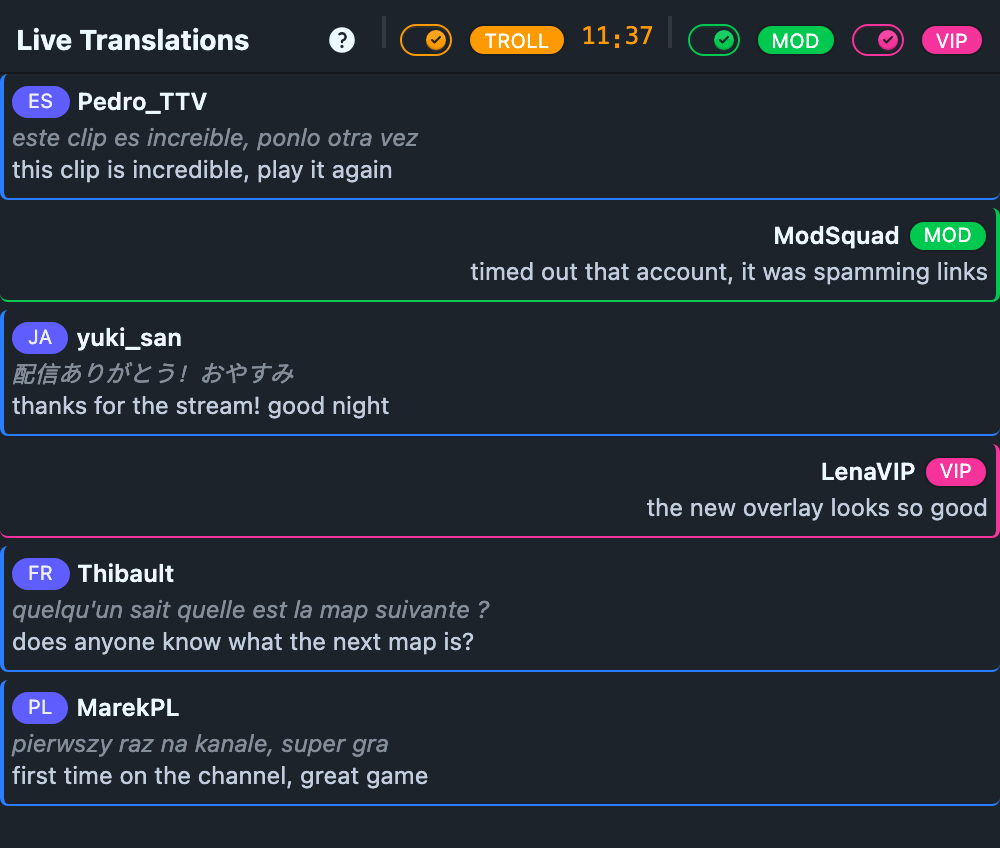
Add the translation bot to your channel →Chat moves fast. The live view pulls the messages that matter into one feed beside your stream: every translated message with the original underneath it, and your moderators and VIPs highlighted down the other side.
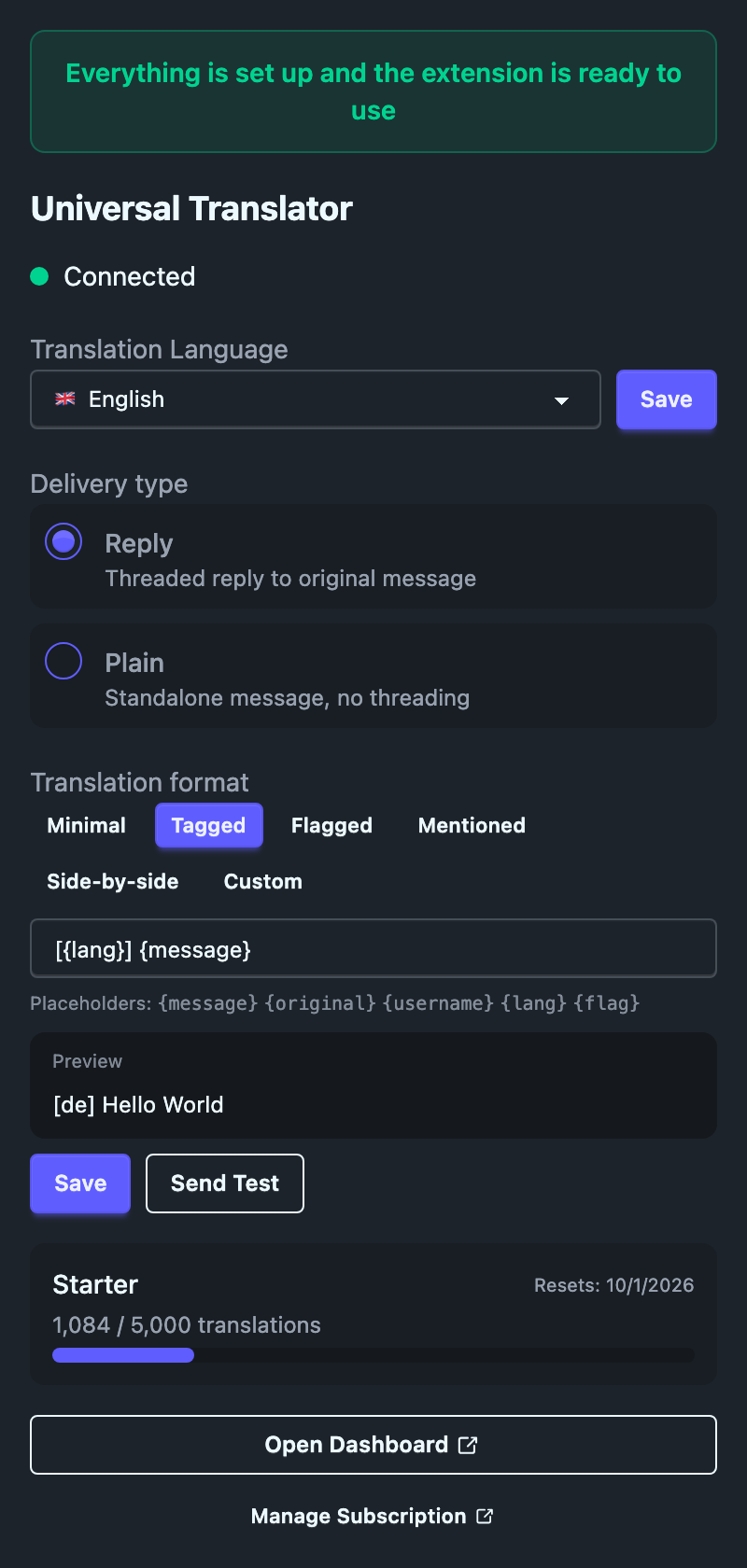
The settings that matter mid-stream are right there in the extension’s config panel, so you are not alt-tabbing to a browser tab between games.
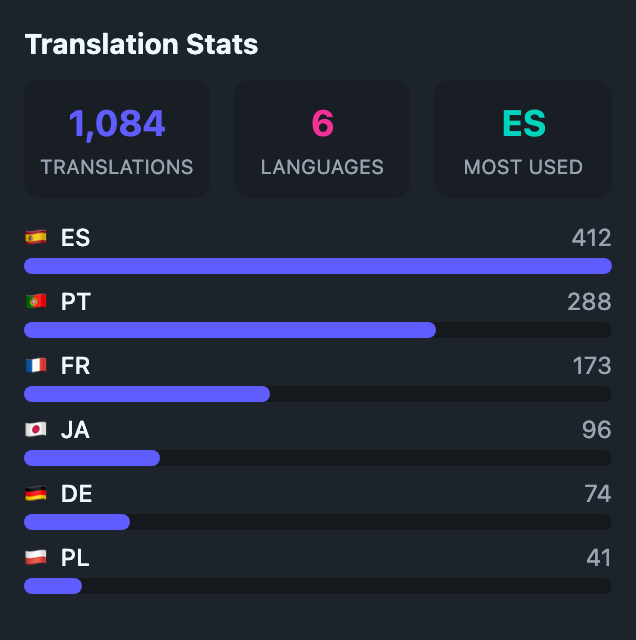
Viewers get a panel with the languages your chat actually speaks: how many messages have been translated, how many languages turned up, and which one leads — with flags and a live bar chart.
It is a quiet piece of proof. A viewer typing in Portuguese can see they are not the only one, and a first-time visitor can see the room is bigger than it looks.
Find Universal Translator in the Twitch extension library — or follow the button on this page — and activate it on your channel.
No tokens, no keys, nothing to copy across. It recognises the channel it is installed on and connects to your account by itself.
If you have not set the bot up, the extension’s settings panel says so and links you to the setup page, then notices when you are done and switches itself over.
You do not have to be live. Every view works while the channel is offline, which is when most people set things up anyway.
Activate it in your Twitch dashboard — free, and set up in about two minutes.
Install Extension on Twitch